Tutorial 2 — Turning on your TV
“Alexa, turn on the TV.”
No hunting for the remote.
The remote is small, fiddly and always down the side of the chair. Voice control takes it out of the equation — and it works on the television you already own.
What you’ll need
An hour of an afternoon. If there is already an Echo or a HomePod in the house, you are most of the way there.
- A TV with a spare HDMI socket Almost any television from the last fifteen years. You do not need a new one, and you do not need a “smart” TV.
- A voice stick or box A Fire TV Stick for Alexa, or an Apple TV for Siri. Around £40–60 for the stick, more for the Apple box.
- A speaker to talk to An Amazon Echo, or a HomePod. One in the room where the TV is watched.
- Home Wi-Fi And the password. Find it before you start — it is usually printed on the router.
Setting it up
Pick whichever system the house already uses. If you are starting from nothing, the Alexa route is cheaper and a little more forgiving.
-
1
Check what the TV can already do
Some newer televisions listen for “Alexa” on their own. Look on the remote for a microphone button, or check the box and the TV’s settings menu for the words “Works with Alexa”.
If it’s already there, skip to step four. If not, a small stick that plugs into the back of the TV will do it — see the next step.
-
2
Add a Fire TV Stick
This is the part that surprises people: you don’t need a new television. A Fire TV Stick plugs into an HDMI socket on the back of any TV, and it takes voice commands.
Plug it into an HDMI socket, connect its little power cable, and follow the setup on screen. It will ask for your Wi-Fi password.
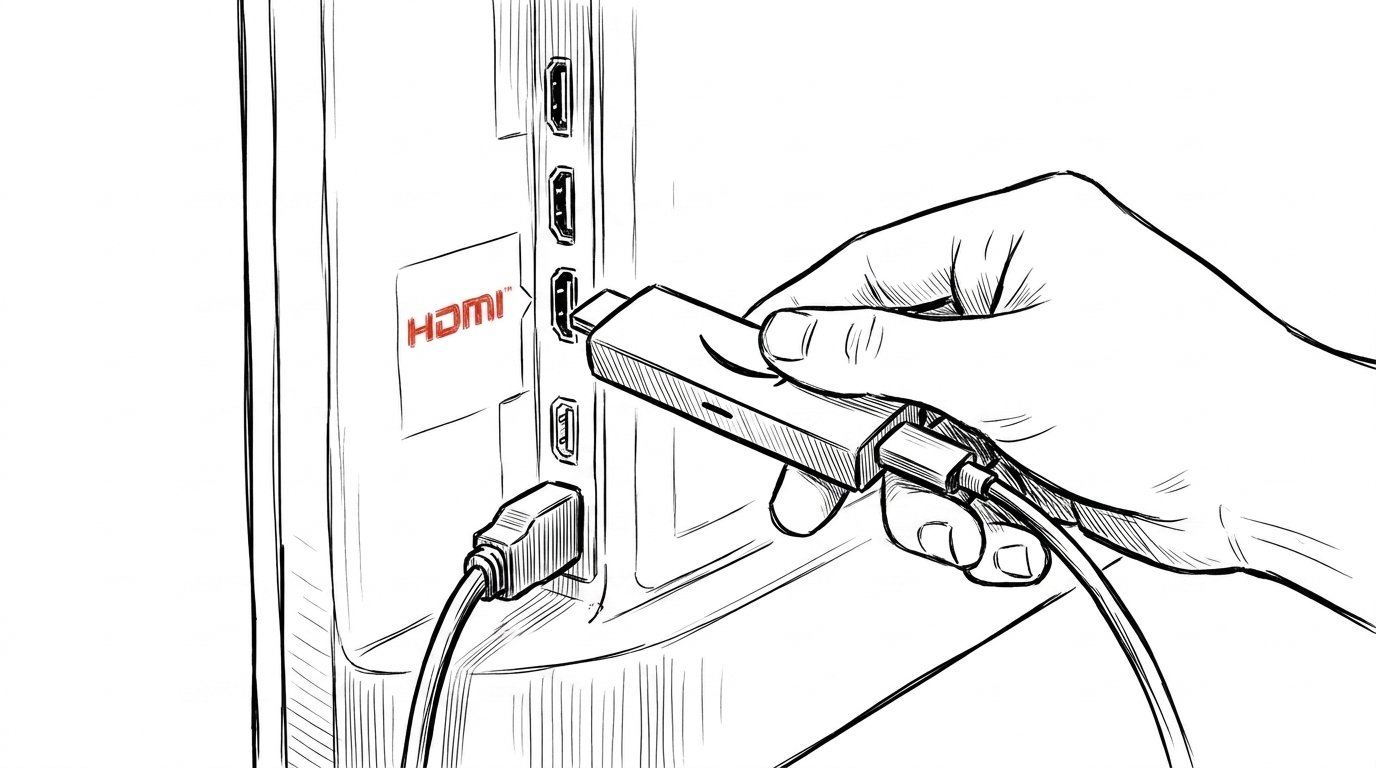
The stick plugs into a spare HDMI socket on the back of the TV. -
3
Turn on the setting that lets it power the TV
This is the step almost everyone misses, and without it voice will change channels but won’t turn the TV on.
In the TV’s own settings menu, find HDMI-CEC and switch it on. Manufacturers rename it — Samsung calls it Anynet+, LG calls it SIMPLINK, Sony calls it Bravia Sync. Searching your TV model plus “HDMI-CEC” will find it.
Once it’s on, the stick can wake the television up by itself.
-
4
Put an Echo speaker in the room and link them
Plug in the Echo, set it up in the free Amazon Alexa app, and put it beside the chair or the bed — not across the room.
In the app, tap Devices, then All Devices, choose the Fire TV, and pick Link your Alexa device. Choose the Echo in the same room.
-
5
Test the three commands that actually get used
Sit where it will really be said. Say each one at a normal volume.
Try saying
“Alexa, turn on the TV.”
“Alexa, turn the volume up.”
“Alexa, pause.”Volume is the command that gets used most often — more than channels, more than power. Make sure it works from the chair before you call it done.
-
1
Check what the TV can already do
Look for AirPlay 2 or Works with Apple Home on the TV’s box or in its settings. Many recent sets have it built in.
Built-in AirPlay lets Siri turn the TV on and off. For full control — volume, pausing, apps — an Apple TV box is the reliable route.
-
2
Add an Apple TV box
An Apple TV 4K plugs into an HDMI socket on the back of the television and takes Siri commands.
Plug it in, connect the power, and follow the setup on screen. Holding an unlocked iPhone near it copies your Wi-Fi and account across, which saves a lot of typing.
Photo: an Apple TV box connected to the back of a televisionThe box connects to a spare HDMI socket on the back of the TV. -
3
Turn on the setting that lets it power the TV
In the TV’s own settings, switch on HDMI-CEC — Samsung calls it Anynet+, LG SIMPLINK, Sony Bravia Sync.
Then in the Apple TV, go to Settings › Remotes and Devices and turn on Control TVs and Receivers. Now Siri can wake the television itself.
-
4
Put a HomePod in the room
An iPhone can send commands, but for hands-free you need a speaker in the room listening. Plug in the HomePod, hold your iPhone near it, and follow the prompts.
Open the Home app and check the HomePod and the Apple TV are both in the same room — Siri uses the room to work out which TV you mean.
-
5
Test the three commands that actually get used
Sit where it will really be said. Say each one at a normal volume.
Try saying
“Hey Siri, turn on the TV.”
“Hey Siri, turn the volume up.”
“Hey Siri, pause.”Volume is the command that gets used most often — more than channels, more than power. Make sure it works from the chair before you call it done.
Things we wish we’d known
- HDMI-CEC is the whole trick. Without it, voice will change channels on a TV that is already on, but it will not turn the TV on. If only one thing on this page gets done, make it this setting.
- Volume matters more than channels. In our house the command used twenty times a day was volume, not power and not channel. Test it first and test it from the chair.
- Keep the remote reachable. Wi-Fi drops and boxes need restarting. Leave the ordinary remote somewhere it can still be reached, and make sure whoever is home knows where it is.
- Ask for the app, not the channel number. Saying “open iPlayer” or “watch the news” is easier to say, and easier to be understood, than a string of digits.
- Plan for speech changing. The same stick can be controlled from a phone app, a large-button remote, or a single switch. Nothing bought today is wasted if voice becomes unreliable later.