Tutorial 1 — Hands-free lighting
“Alexa, turn on the living room lamp.”
Six words. No getting up.
If holding a switch has become difficult, this is one of the smallest changes you can make that gives back the most. Here’s how to set it up, start to finish.
What you’ll need
Around £40–60 to start, and an hour of an afternoon. You don’t need an electrician and you don’t need to change anything permanent.
- A smart bulb or a smart plug A bulb screws into a lamp or ceiling fitting. A plug sits between the wall socket and a lamp you already own. Both work — see step one.
- A speaker to talk to An Amazon Echo for Alexa, or a HomePod for Siri. One in the room where it’s needed most.
- Home Wi-Fi And the password. Find it before you start — it’s usually printed on the router.
- A phone or tablet To run the free app that sets everything up. This can be yours, not theirs.
Setting it up
Pick whichever system the house already uses. If you’re starting from nothing, Alexa is generally cheaper and a little more forgiving.
-
1
Choose a bulb or a plug
A smart bulb replaces an existing bulb. Best for ceiling lights and for lamps where the bulb is easy to reach.
A smart plug goes into the wall socket, and the lamp plugs into that. Best when you want to keep a lamp you love, or when the bulb is awkward to get at.
Look for the words “Works with Alexa” on the box.
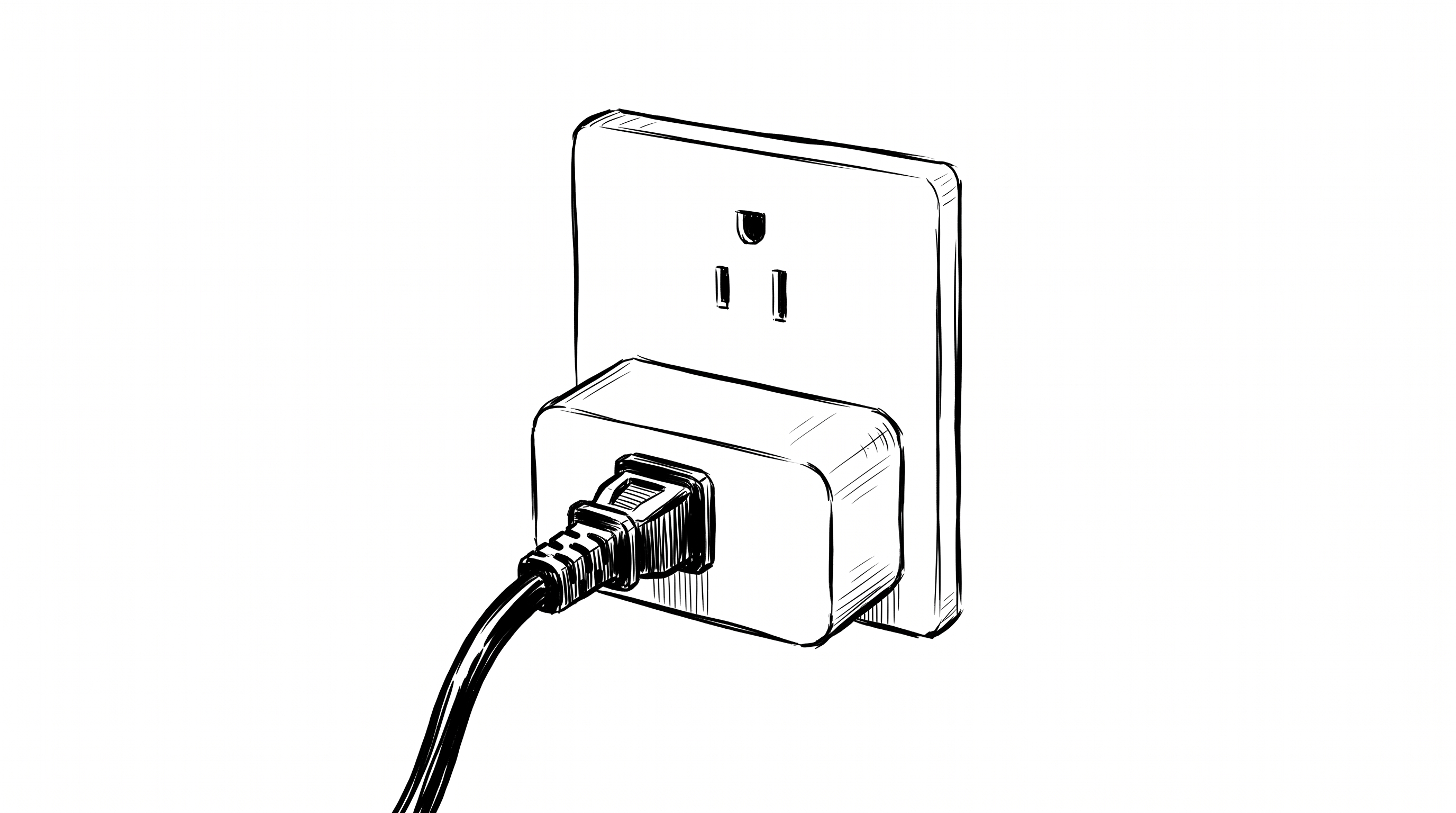
A smart plug sits between the wall socket and the lamp you already own. -
2
Set up the Echo speaker
Plug it in. Download the free Amazon Alexa app on your phone and sign in. The app will find the new speaker and walk you through joining the Wi-Fi.
Put the speaker where it will actually be used — beside the chair, beside the bed — not on a shelf across the room.
-
3
Add the light
Screw the bulb in, or plug the plug in, and switch the power on at the wall.
In the Alexa app, tap Devices, then the + in the corner, then Add Device. Choose the brand from the list and follow the prompts.
-
4
Give it a name that's easy to say
This is the step people skip, and it’s the one that matters most. The app will suggest something like “TP-Link Smart Bulb 4A2C”. Change it.
Use a name that’s short, obvious, and doesn’t sound like another word in the house. “Living room lamp” works. “Reading light” works. Avoid names that need spelling out or that rhyme with a name someone actually answers to.
Say the whole command out loud before you settle on it. If it’s a mouthful for you, it will be harder for someone whose speech is changing.
-
5
Test it from where it's needed
Not standing next to the speaker. Sit in the chair. Lie on the bed. Say it at a normal volume, the way it will really be said.
Try saying
“Alexa, turn on the living room lamp.”
If it doesn’t hear you from there, move the speaker closer rather than asking someone to speak louder.
-
1
Choose a bulb or a plug
A smart bulb replaces an existing bulb. A smart plug sits between the wall socket and a lamp you already own.
Check the box says “Works with Apple Home” or carries the Matter logo. Not every smart bulb works with Apple, so this one’s worth checking twice before you buy.
A smart plug sits between the wall socket and the lamp you already own. -
2
Set up a HomePod in the room
An iPhone can control the lights on its own, but for hands-free voice you want a speaker sitting in the room listening. Plug in the HomePod, hold your iPhone near it, and follow the prompts on screen.
Put it where it will actually be used — beside the chair, beside the bed.
-
3
Add the light
Screw the bulb in, or plug the plug in, and switch the power on at the wall.
Open the Home app on the iPhone or iPad, tap +, then Add Accessory, and point the camera at the code printed on the bulb, the plug, or the box. Keep that code — photograph it before you throw the box away.
-
4
Give it a name that's easy to say
The Home app will ask for a name and a room. Both matter, because Siri uses the room to work out what you mean.
Short and obvious wins: “Reading light” in the room called “Living Room”. Avoid names that sound like other words in the house.
Say the whole command out loud before you settle on it. If it’s a mouthful for you, it will be harder for someone whose speech is changing.
-
5
Test it from where it's needed
Not standing next to the speaker. Sit in the chair. Lie on the bed. Say it at a normal volume, the way it will really be said.
Try saying
“Hey Siri, turn on the reading light.”
If it doesn’t hear you from there, move the speaker closer rather than asking someone to speak louder.
Things we wish we’d known
- Leave the wall switch on. A smart bulb needs power to listen. If someone flicks the switch off out of habit, the voice command stops working and nobody knows why. A small label by the switch helps more than you’d think.
- Set it up early. It is far easier to learn a new command while speech is still steady, than to introduce one later. Get it and use it before you need it — that goes for all of this.
- Keep a way to do it by hand. Routers restart, Wi-Fi drops, updates happen. A smart plug still has a physical button. Make sure whoever’s home knows where it is.
- One light first. Resist doing the whole house in an afternoon. Get one lamp working, live with it for a week, then add the next.
- Speech changes are worth planning for. If voice becomes unreliable, the same bulb can be controlled from a tablet, a large-button remote, or a motion sensor that turns it on automatically. Nothing you buy today is wasted.